 Adrian Waldron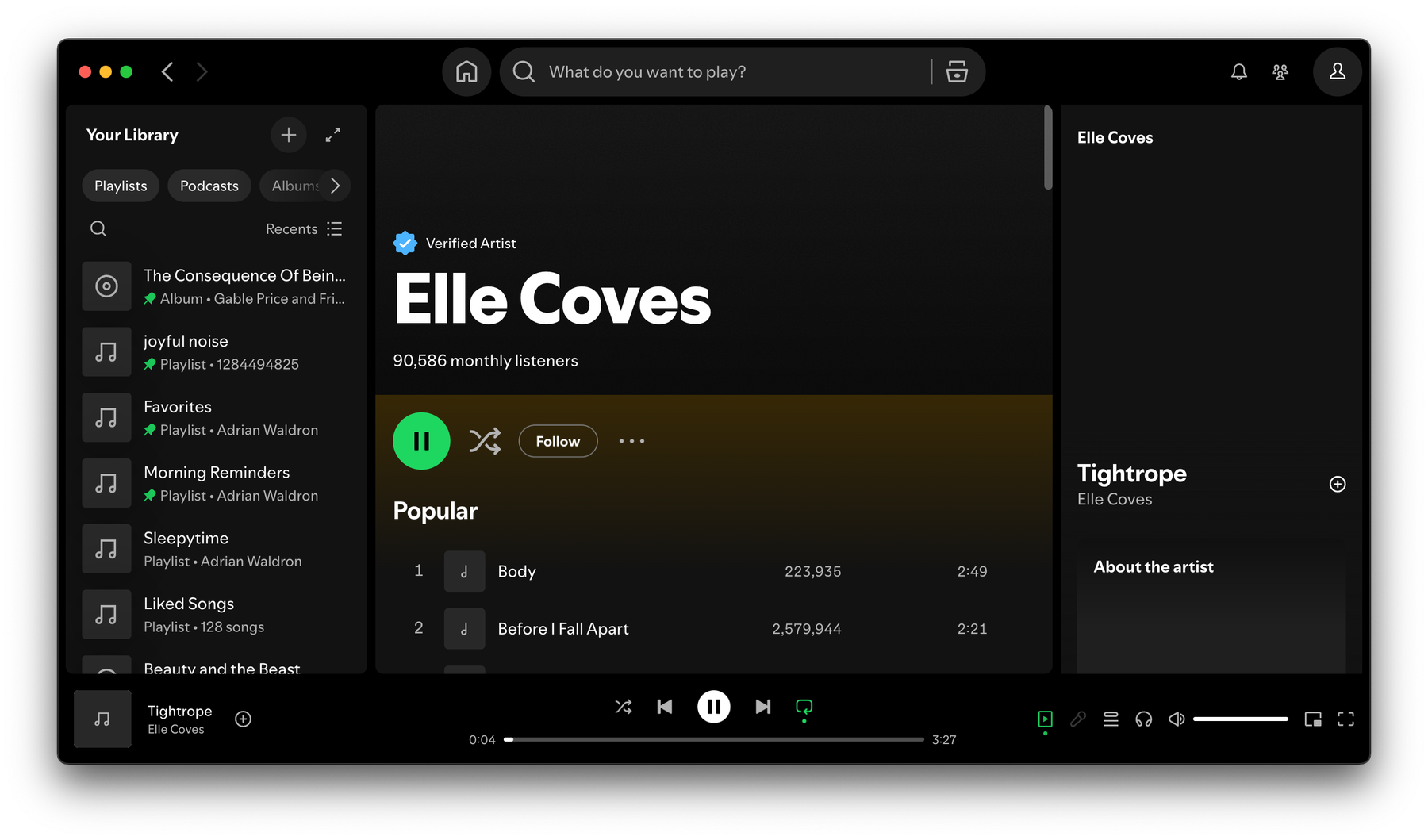
Lately, I’ve been on a mission to reduce distractions — not just social media, but anything that tempts me to multitask or drift away from deep work.
A few days ago, I was listening to music on Spotify while working on some writing for Cancer Doctor, and I caught myself glancing—again—at the album covers, videos, and visual fluff they’ve packed into the app over the last couple of years.
It was all just noise.
Visual stimulation that added zero value to the task at hand. Sometimes, it even felt like it was compromising the intentionality I’m trying to cultivate with my eyes — to stay pure and focused on the task at hand.
So I went down the rabbit hole.
Blocking Spotify’s Visual Distractions Using Little Snitch
I was originally trying to block Spotify’s image and video CDN using DNS tools (like Freedom.to), but it wasn’t working consistently.
Freedom works perfectly on iOS, but not on my laptop.
Then I researched a tool that would let you control exactly which domains your apps are allowed to communicate with.
I made a Loom Video on exactly how to do this.
I stumbled on Little Snitch — a network monitor and firewall for macOS.
So I opened up Spotify, played a few songs, and started monitoring what was loading.
Within a few minutes, I found the culprits:
-
spotify-cdn.com -
scdn.co
These two domains are responsible for loading album art, video loops, and other UI assets.
By blocking everything from those domains except the audio streams, I was able to strip Spotify down to what it used to be: a music player.
Here’s how I did it:
-
Install Little Snitch (macOS only).
-
Play around in Spotify to generate traffic — skip songs, open playlists, lookup artists, etc.
-
Use Little Snitch to block:
-
*.spotify-cdn.com -
*.scdn.co
-
-
Then, re-enable any subdomains related to audio — these are easy to spot. Anything with
audioin the name? Keep it. -
Boom. No album covers. No background videos. No distractions.
Be sure to use a good uninstaller tool (like AppCleaner or CleanMyMac) to remove all cache files from Spotify too - this will remove any previous album covers/canvas videos you’ve already loaded in the past.
You still get all the music — none of the marketing layers.
Why This Matters (To Me, At Least)
Maybe this feels like a silly little hack.
But for me, it’s part of a larger theme I keep coming back to in this season of life: simplify everything so I can focus on what actually matters.
And honestly, it’s a great metaphor for how I’ve been thinking about productivity and digital tools lately.
Sometimes the most “feature-rich” version of a tool is actually the most distracting. I’d rather use a stripped-down version that helps me focus on what the tool was made to do.
Spotify wasn’t built to be a visual platform. It was built to play music. And now, thanks to this setup, it does exactly that.
Bonus: This Applies Beyond Spotify
I’ve found that “customizing your tech for the season you’re in” is a skill I want to keep developing.
The goal is the same: remove friction, remove distraction, and get to the work God’s put in front of me.
If you’re like me and have been feeling overstimulated, even by tools you chose to use… maybe it’s time to go deeper into customizing your tools for the life you’re building.
Spotify was a small one. But a meaningful one.
Let me know if you give it a shot.
P.S. - I made a Loom Video on exactly how to do this.